How to perchase ▲top
If you would like to purchase, please contact us at
Inquiry.
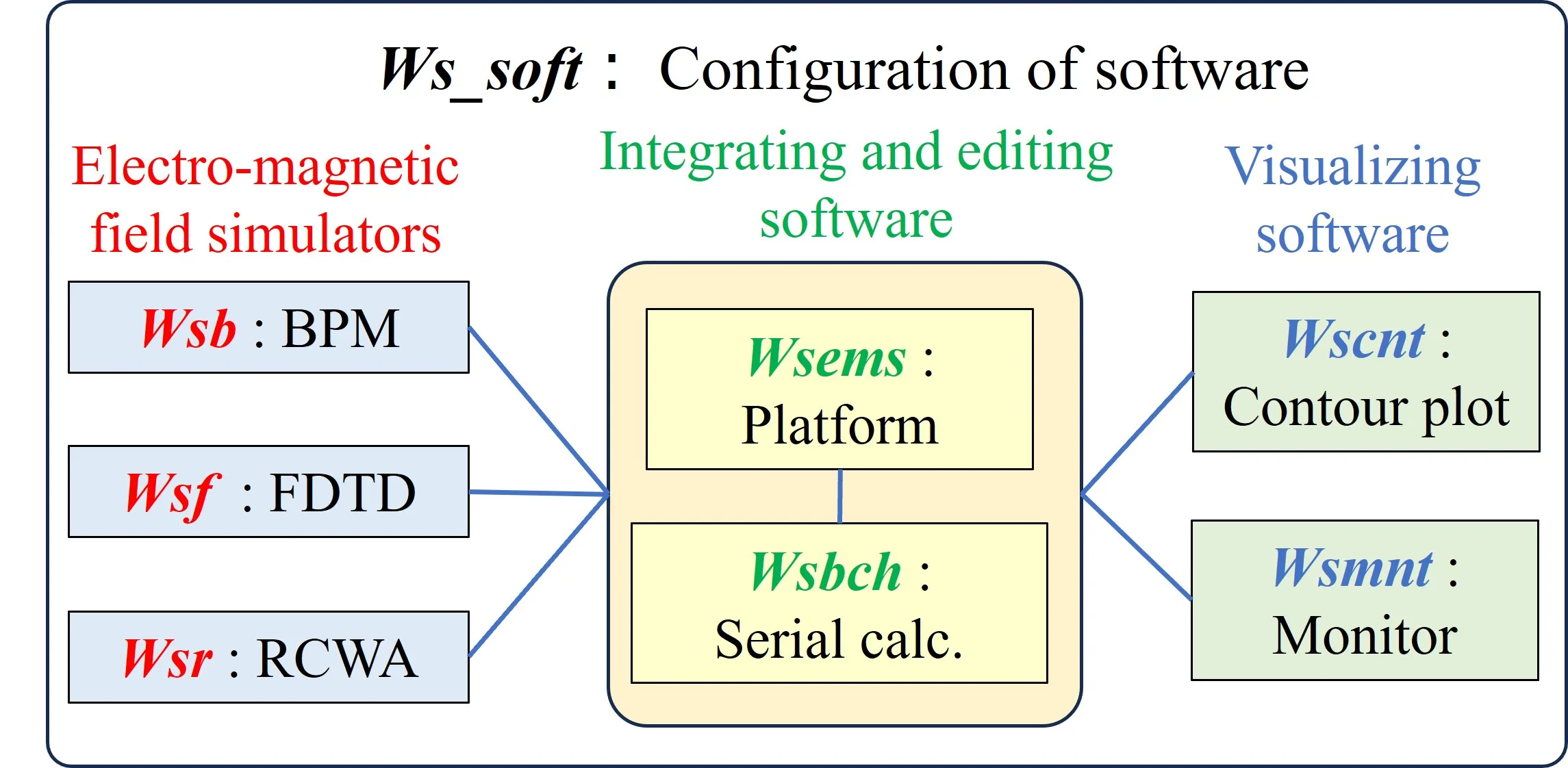
 (1)
(1) To remove restrictions, you must purchase the full version (annual license: ¥120000, perpetual license: ¥¥380,000, including tax). It can be used on one computer. If you provide your own USB dongle (
ROCKEY2), you can use it on other computers that are connected.
(2) Use Sup_checker to read your computer's MAC address. Copy this address and a screenshot of the display window into an Excel file or similar, then send it to us (see
How to check the serial number). Sup_checker is located in the extracted directory of the distributed software (\ws_soft\wsems).
(3) Upon applying for the official version, an invoice with a credit card payment link will be sent via email shortly. Please note that tax registration procedures may be required depending on your region, which could delay the invoice dispatch.
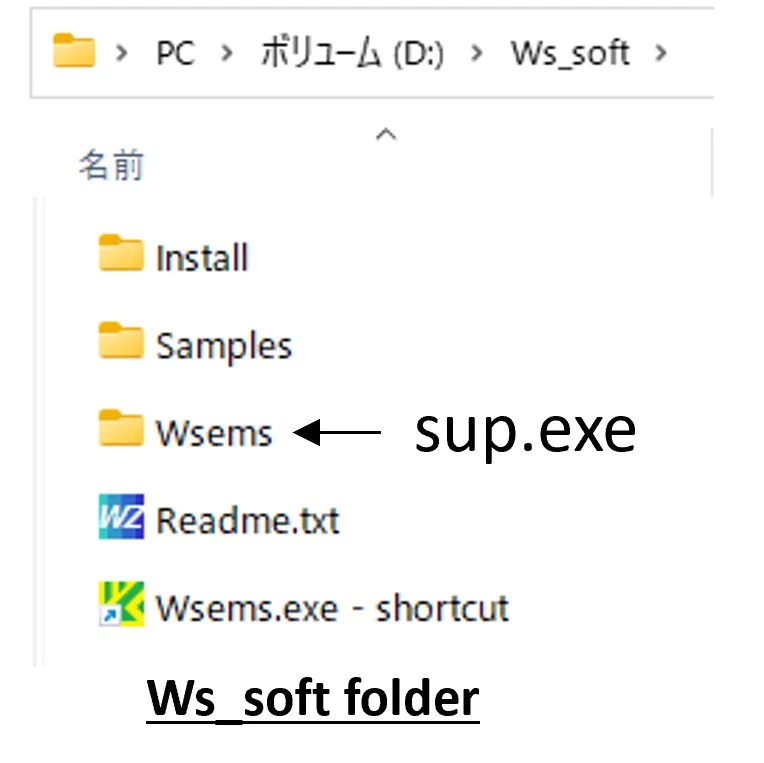
(4) Credit card payments are accepted via VISA, MasterCard, JCB, AMERICAN EXPRESS, Diners Club, China UnionPay, and EFTPOS. Mobile payments are supported via Apple Pay and Google Pay. After confirming payment, we will send a compressed file named sup.zip corresponding to your MAC address (sent only once). Extract this file and use the generated unlock key sup.exe to overwrite the file within the directory (\ws_soft\wsems) on your computer to remove restrictions. Please note that chargebacks will not be accepted after the unlock key is sent.
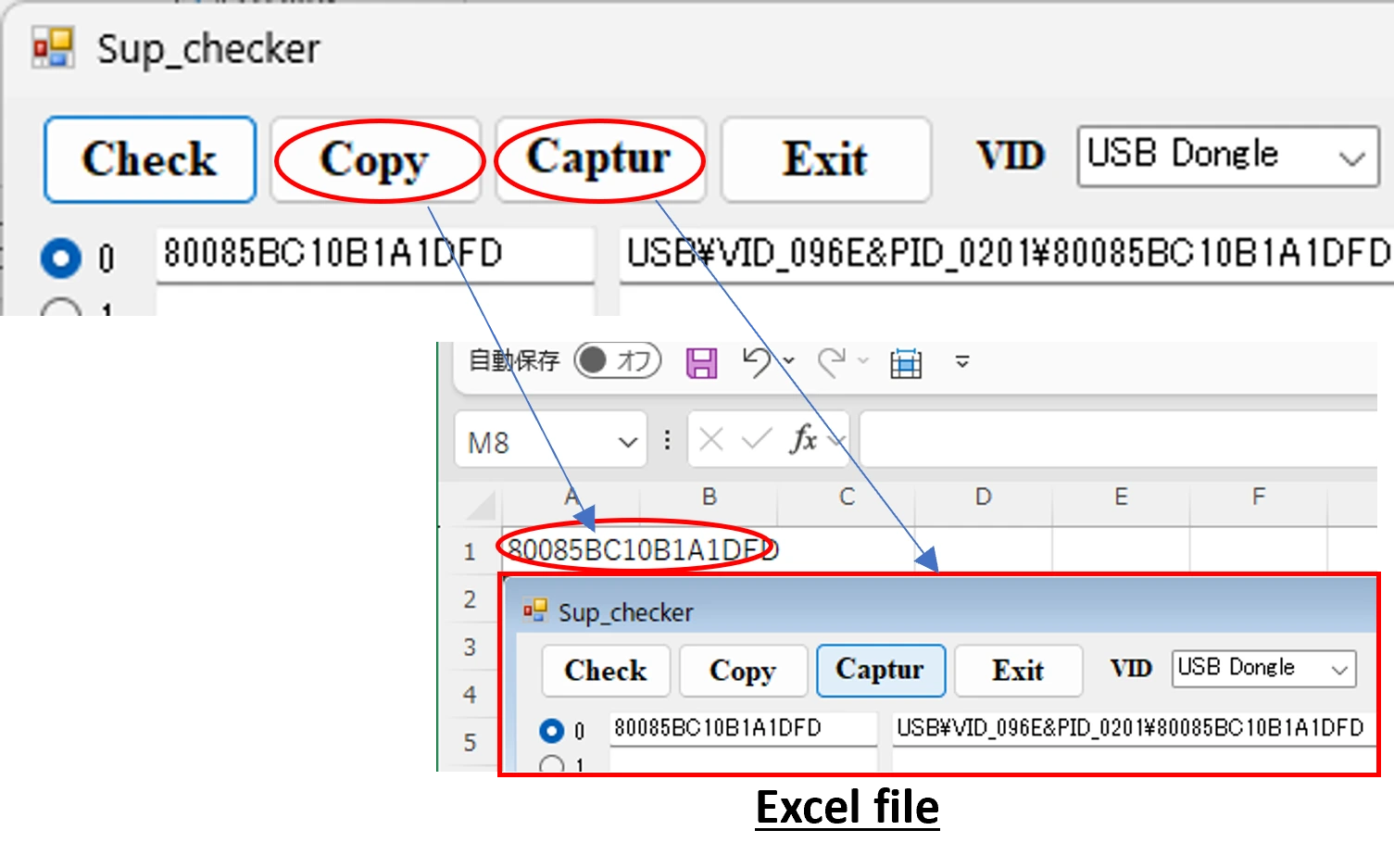
(5) When using a USB dongle, after purchasing the full version, use Sup_checker to read the USB dongle‘s serial number. Paste that number and a screenshot of the display window into an Excel file or similar, then send it to us. We will send you the compressed file sup.zip corresponding to the USB dongle (sent only once).
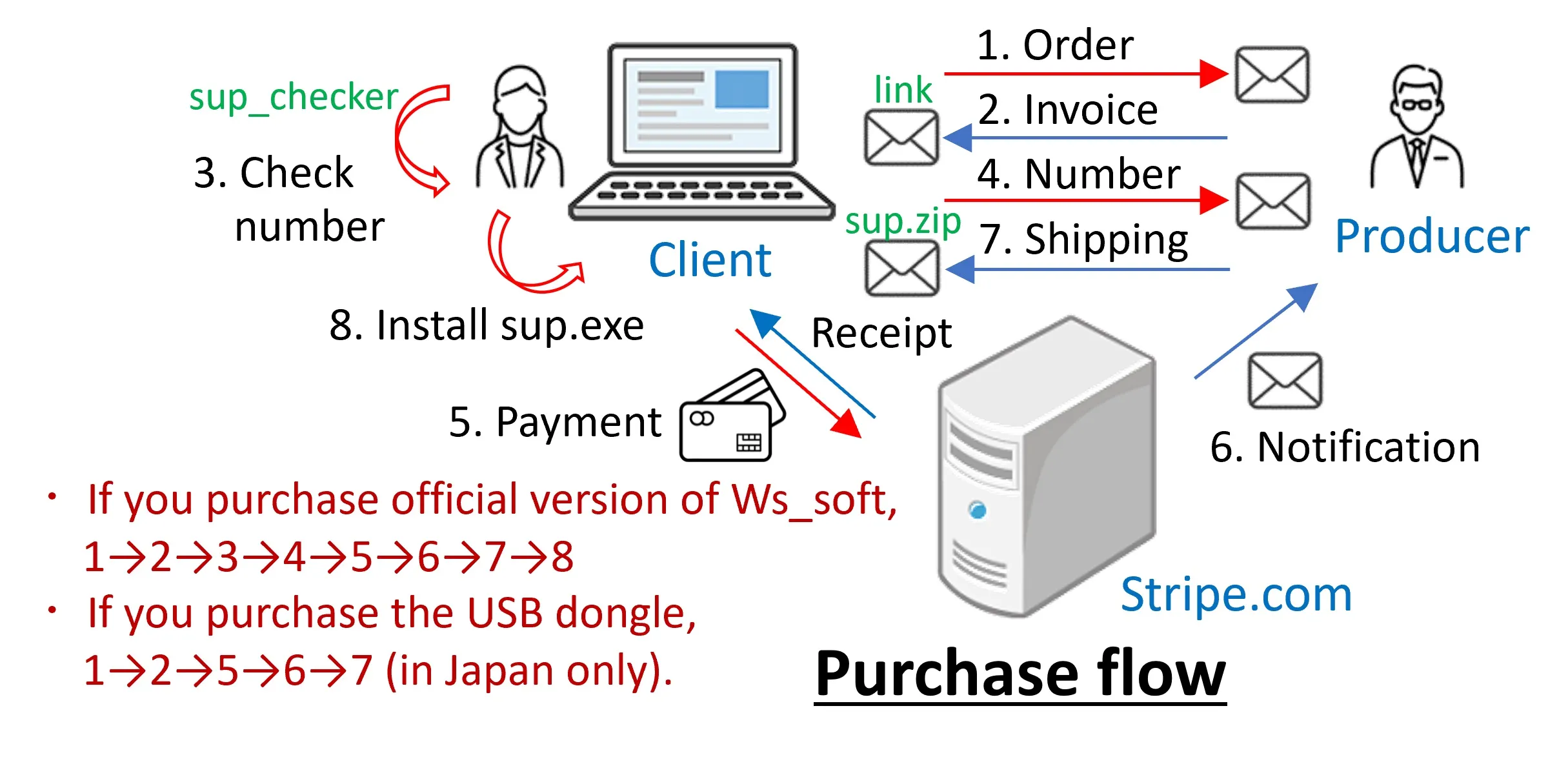 (6)
(6) One week prior to the end of the usage period, a termination notice will appear when using this software. To continue using it, please make a payment following the instructions from Stripe. After confirming your payment, we will send you a new unlock key. At this time, you may change your computer or USB dongle.
How to check the serial number ▲top
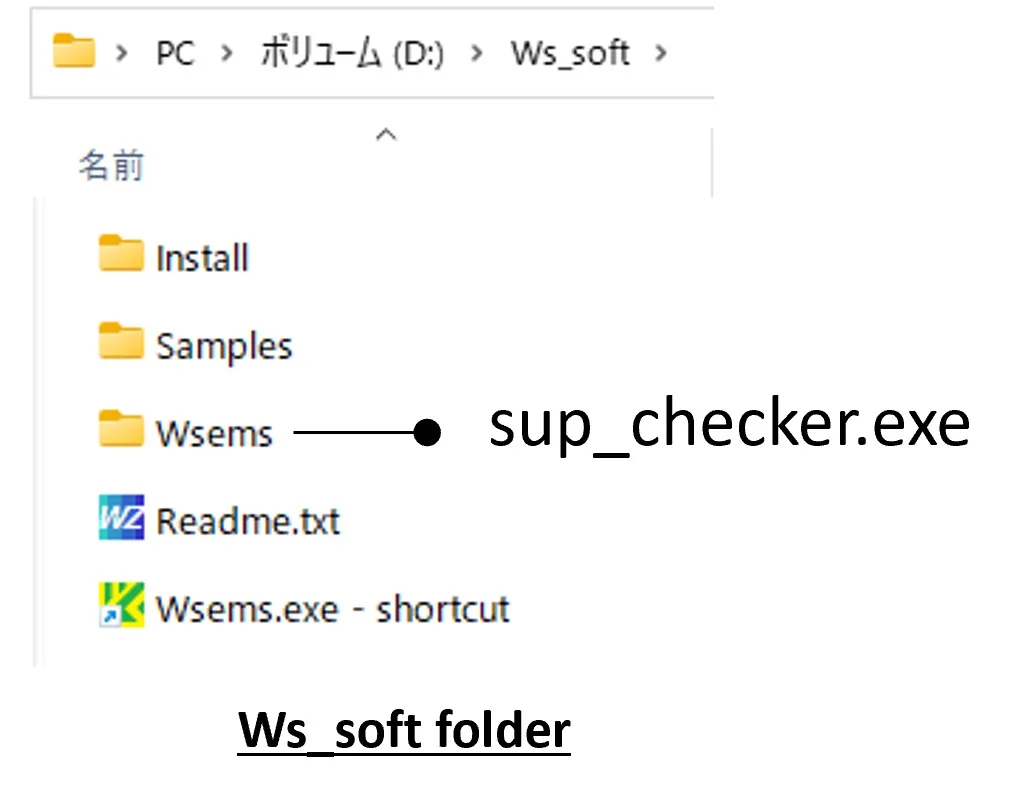 (1)
(1) Double-click the file sup_checker.exe located in the folder \Ws_soft\Wsems installed on your Windows PC.
(2) In the sup_checker window, select the MAC Address in the VID box and click the Check button. The MAC Address will then appear in the box below.
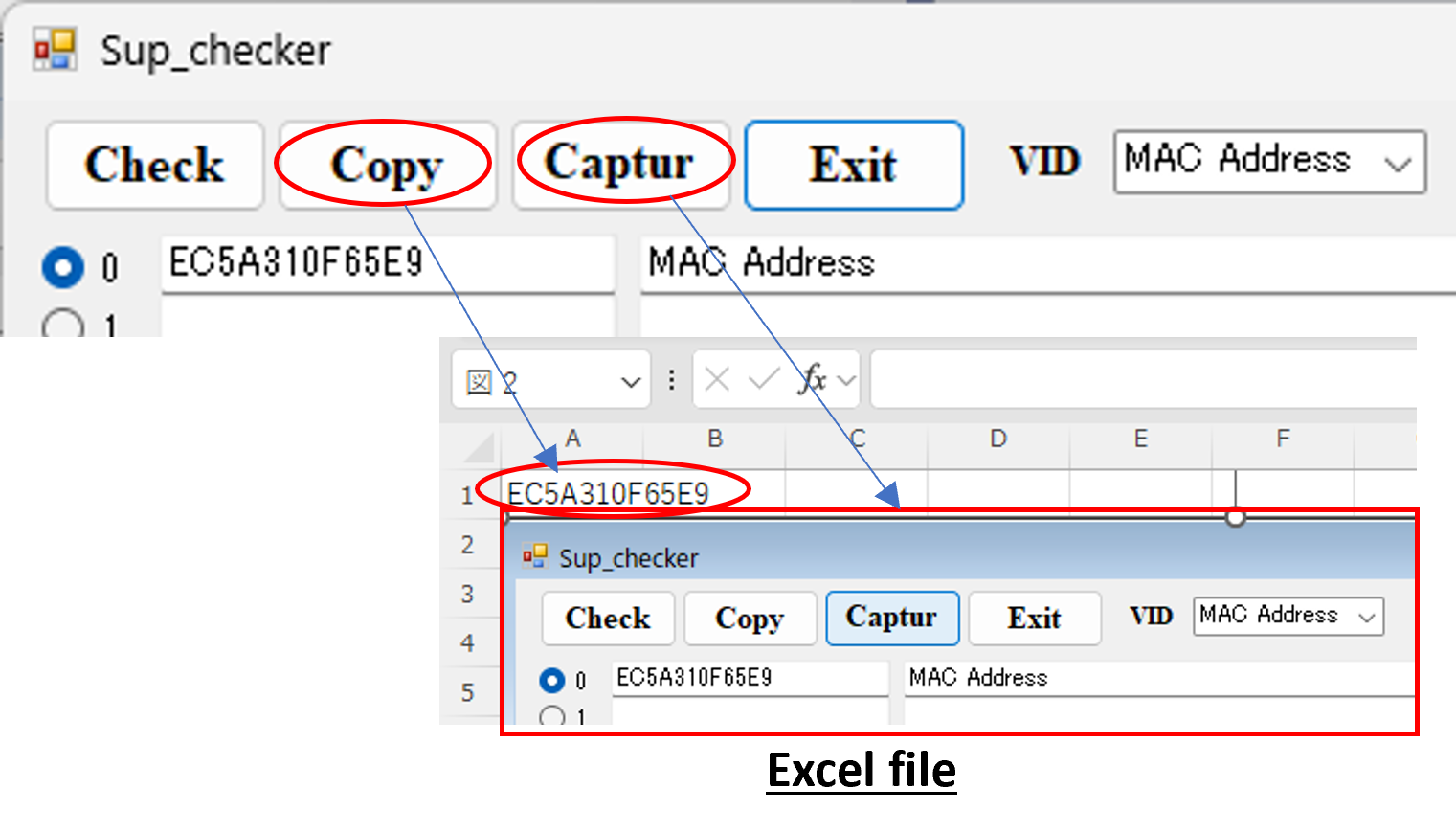 (3)
(3) Click the Copy button and paste the MAC Address into an Excel file or similar. Click the Capture button and paste the captured image into the same file.
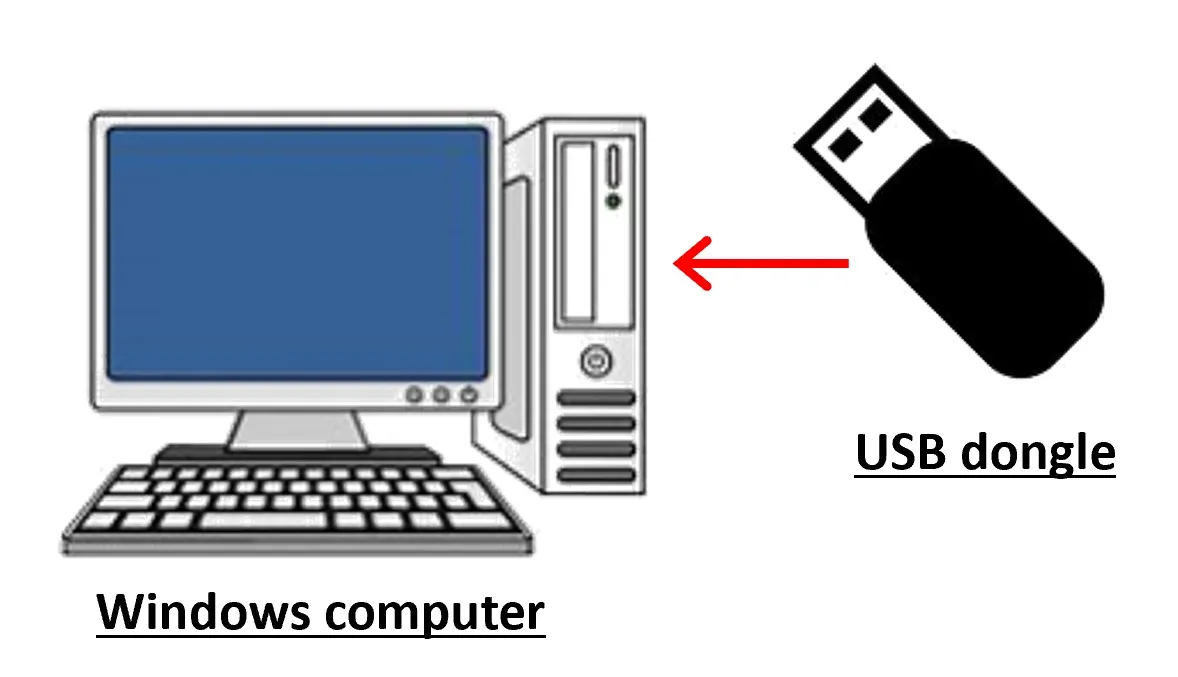 (4)
(4) When using a USB dongle, connect it to your Windows PC. In the sup_checker window, select the USB dongle in the VID box and click the Check button. The serial number will appear in the box below. Paste this number and the captured image into the file.
 (5)
(5) Send the attached file with the email subject line as MAC Address information or dongle information to "optics@wsems.tech".